Private AI Stack: Ollama, Open WebUI, OPNsense, and Terraform
Reference architecture for private LLM workloads. Includes Docker Compose, OPNsense VLAN isolation, and Terraform provisioning.
Quick Answer
The OpsNexus Private AI Stack is a reference architecture for deploying LLMs behind a hardened network boundary. It uses Docker for orchestration, Ollama for inference, and OPNsense for VLAN-based micro-segmentation. This stack ensures that sensitive inference data never leaves your perimeter.
Prerequisites
- Hardware: Dedicated GPU server (RTX 3090/4090 or A100/H100) with Ubuntu 22.04 LTS.
- Firewall: OPNsense 24.1+ appliance with at least one free physical port or VLAN-capable switch.
- Access: Tailscale account for Zero-Trust ingress.
- Docker: Docker Engine 25+ and Docker Compose v2.20+.
Architecture Design
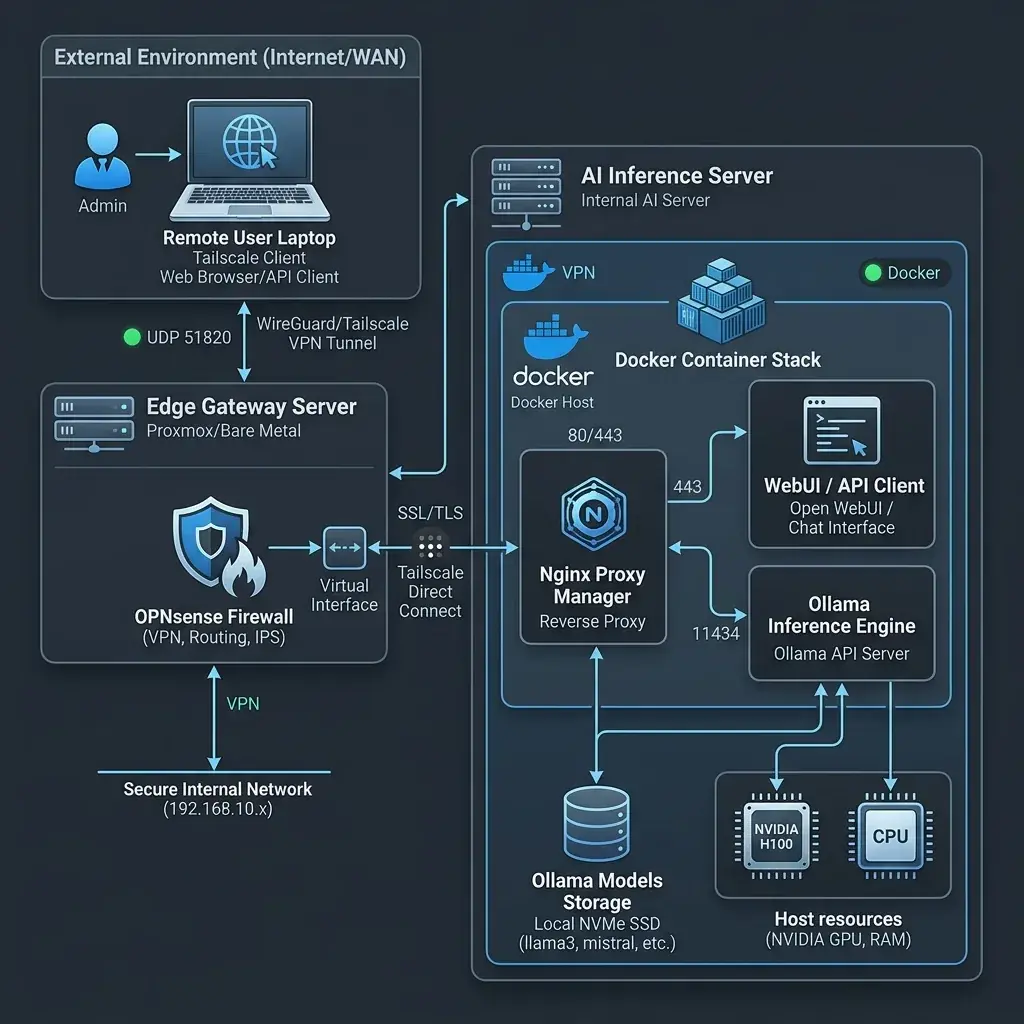
This blueprint creates a “Data Island” for AI workloads. The core compute node is isolated in a dedicated VLAN, reachable only via authorized tunnels or specific internal gateways.
Component Map
- Networking: OPNsense (VLAN 50 -
AI_Sovereign) - Compute: Ubuntu 22.04 LTS + NVIDIA Container Toolkit
- Inference: Ollama (Internal API)
- UI: Open WebUI (Admin Portal)
- Access: Tailscale (Zero-Trust Ingress)
Implementation Guide
1. Network: OPNsense Isolation
Create a new VLAN interface on OPNsense.
- Tag: 50
- Name:
AI_SOVEREIGN - Subnet:
10.50.0.1/24
Mandatory Firewall Rules:
- Allow DNS: UDP from
AI_SOVEREIGNnet toThis Firewall(Port 53). - Deny All Outbound: Block all traffic from
AI_SOVEREIGNnet toAny. - Internal Access: Allow TCP from
Management_LANtoAI_Node(Ports 11434, 3000).
2. Compute: Host Preparation
On your Linux GPU node, install the required drivers and toolkit.
# Install NVIDIA Container Toolkit
curl -fsSL https://nvidia.github.io/libnvidia-container/gpgkey | sudo gpg --dearmor -o /usr/share/keyrings/nvidia-container-toolkit-keyring.gpg \
  && curl -s -L https://nvidia.github.io/libnvidia-container/stable/deb/nvidia-container-toolkit.list | \
    sed 's#deb https://#deb [signed-by=/usr/share/keyrings/nvidia-container-toolkit-keyring.gpg] https://#g' | \
    sudo tee /etc/apt/sources.list.d/nvidia-container-toolkit.list
sudo apt-get update && sudo apt-get install -y nvidia-container-toolkit
3. Orchestration: The Sovereign Compose
Create a docker-compose.yml that enforces internal networking.
services:
  ollama:
    image: ollama/ollama:latest
    container_name: ollama_core
    volumes:
      - ./ollama_data:/root/.ollama
    networks:
      - ai_internal
    deploy:
      resources:
        reservations:
          devices:
            - driver: nvidia
              count: all
              capabilities: [gpu]
    environment:
      - OLLAMA_KEEP_ALIVE=24h

  open-webui:
    image: ghcr.io/open-webui/open-webui:main
    container_name: ai_portal
    ports:
      - "3000:8080"
    volumes:
      - ./webui_data:/app/backend/data
    environment:
      - OLLAMA_BASE_URL=http://ollama:11434
    networks:
      - ai_internal
      - public_ingress

networks:
  ai_internal:
    internal: true # No internet access for Ollama
  public_ingress:
    driver: bridge
Security Notes
- Model Sourcing: In high-security environments, pre-pull models on a staging machine and transfer them to the
ollama_datavolume via a physical data diode or controlled SCP. - Port 11434: Never expose this port to your local network without an authentication layer (like Open WebUI or an Nginx Basic Auth proxy).
- VRAM Hardening: If using multi-tenant GPUs, use NVIDIA MIG (Multi-Instance GPU) to isolate VRAM slices between different departments.
Common Failure Modes
- NVIDIA Driver Mismatch: Containers fail to start. Fix: Run
nvidia-smion the host to ensure the driver is active. - VLAN Tagging Issues: Host cannot reach the gateway. Fix: Verify your switch port is in
trunkortaggedmode for VLAN 50. - DNS Failures: Containers cannot resolve internal hostnames. Fix: Use static IP mappings in Docker Compose or configure OPNsense Unbound DNS for the AI subnet.
Verification & Validation
- Hardware Recognition: Run
docker exec -it ollama_core nvidia-smi. It must return the GPU details. - Network Isolation: Run
docker exec -it ollama_core ping 8.8.8.8. It must fail (Destination Host Unreachable). - Internal Resolution: Run
docker exec -it ai_portal curl http://ollama:11434. It should return “Ollama is running”.
Related Guides
- Deep Dive: Sovereign AI Infrastructure Guide.
- Networking: Securing AI Servers with OPNsense.
- Deployment: Ollama Docker Compose Tutorial.
FAQ
Q: Why use Tailscale? A: Tailscale provides a WireGuard-based overlay network that allows your team to access the AI Portal securely without opening any ports on your OPNsense firewall.
Q: Can I run this on RunPod? A: Yes, but you must use a Custom Docker Template that includes your firewall rules or run a WireGuard client inside the pod for secure access.
Next Steps
Need help deploying this at enterprise scale? Our solutions team provides Architectural Audits for sovereign AI transitions.
Disclosure: This blueprint uses open-source components. For hardware recommendations (GPUs/Servers), see our Tools Hub.
Private AI Infrastructure Layer Architecture
Enterprise organizations adopting Generative AI require sovereign control over data transit, LLM weights, and vector databases. The OpsNexusAI Private AI Stack integrates five key layers:
- Hardware & Acceleration Layer: Bare-metal GPU servers (NVIDIA H100 / RTX 4090 / AMD Instinct) managed via container runtimes.
- Network Security & Edge Routing Layer: OPNsense physical/virtual firewall enforcing strict perimeter micro-segmentation and WireGuard site-to-site tunnels.
- Inference & Execution Engine Layer: High-performance model servers (vLLM, SGLang, Ollama) running fully offline.
- Knowledge Retrieval Layer: Hybrid vector search engines (Qdrant, Milvus) indexed with enterprise security ACLs.
- Observability Layer: Real-time metric ingestion using Prometheus, DCGM Exporter, and Grafana dashboards.
+-------------------------------------------------------------------------+
|                  Enterprise Private AI Reference Stack                  |
|  +-------------------------------------------------------------------+  |
|  | User / App Client Layer (HTTPS / WSS via Reverse Proxy)          |  |
|  +-------------------------------------------------------------------+  |
|                                   ||                                    |
|  +--------------------------------\/---------------------------------+  |
|  | Network Perimeter: OPNsense / Caddy Ingress Gateway               |  |
|  +-------------------------------------------------------------------+  |
|                                   ||                                    |
|  +--------------------------------\/---------------------------------+  |
|  | Private AI Stack Engine: vLLM + Qdrant Vector DB + DCGM Metrics  |  |
|  +-------------------------------------------------------------------+  |
+-------------------------------------------------------------------------+
Production Docker Compose Blueprint (private-ai-stack.yml)
version: "3.8"

services:
  vllm-engine:
    image: vllm/vllm-openai:latest
    container_name: private-ai-llm
    restart: always
    runtime: nvidia
    environment:
      - CUDA_VISIBLE_DEVICES=0
    ports:
      - "10.0.10.50:8000:8000"
    volumes:
      - /mnt/nvme/models:/root/.cache/huggingface
    command: --model Qwen/Qwen2.5-72B-Instruct-AWQ --gpu-memory-utilization 0.92

  vector-store:
    image: qdrant/qdrant:latest
    container_name: private-ai-qdrant
    restart: always
    ports:
      - "10.0.10.50:6333:6333"
    volumes:
      - qdrant_data:/qdrant/storage

volumes:
  qdrant_data:
OpsNexusAI Engineering
Verified Lab PublicationOpsNexusAI is a technical laboratory dedicated to sovereign AI infrastructure. Every implementation guide and architectural blueprint published here is tested on physical hardware and isolated networks. Our team specializes in the deployment of private LLMs, network hardening with OPNsense, and enterprise-grade automation patterns.